Store Timings
Navigating to the Store Timings page
- On the Merchant panel, click on "Settings."

- Then click "Store Timing" within the settings section.
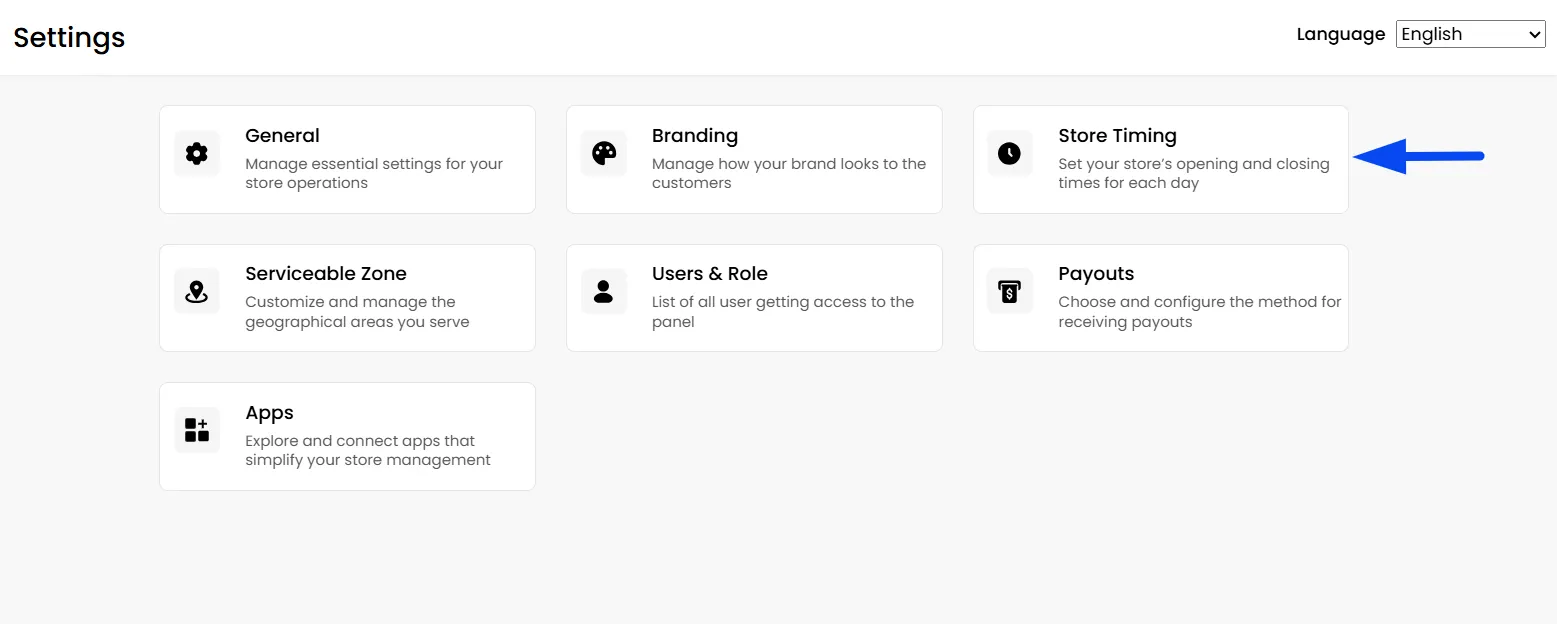
- Enable the business hours setting to configure your opening and closing hours.
Note: It's mandatory to enable and configure your business hours if you offer Order Scheduling options to customers.

- Enter your opening and closing times in 24-hour format from the dropdown or by typing textually.
Note: The timezone will be automatically set from the Admin panel General Settings.

- Use the "+ Add Shift" button to add multiple shifts for the day.

- Toggle availability or unavailability for each day.

- Lastly, click Save to update the configured timings.
Now, if you offer order scheduling options, configure them in Order Scheduling Settings.
Related Articles
Branding
How To Add Your Branding? Your store's branding is its visual identity. It's what makes your storefront unique and recognizable to customers. This section is where you upload your two most important visual assets: your store Logo and your Cover ...Merchant Settings
How To Configure Merchant General Settings? The General Settings page lets you customize your store’s operational rules, such as Order Scheduling and specific Delivery Fees. You can also define Custom Charges to be applied to the customer at checkout ...