Branding
How To Add Your Branding?
Your store's branding is its visual identity. It's what makes your storefront unique and recognizable to customers. This section is where you upload your two most important visual assets: your store Logo and your Cover Image.
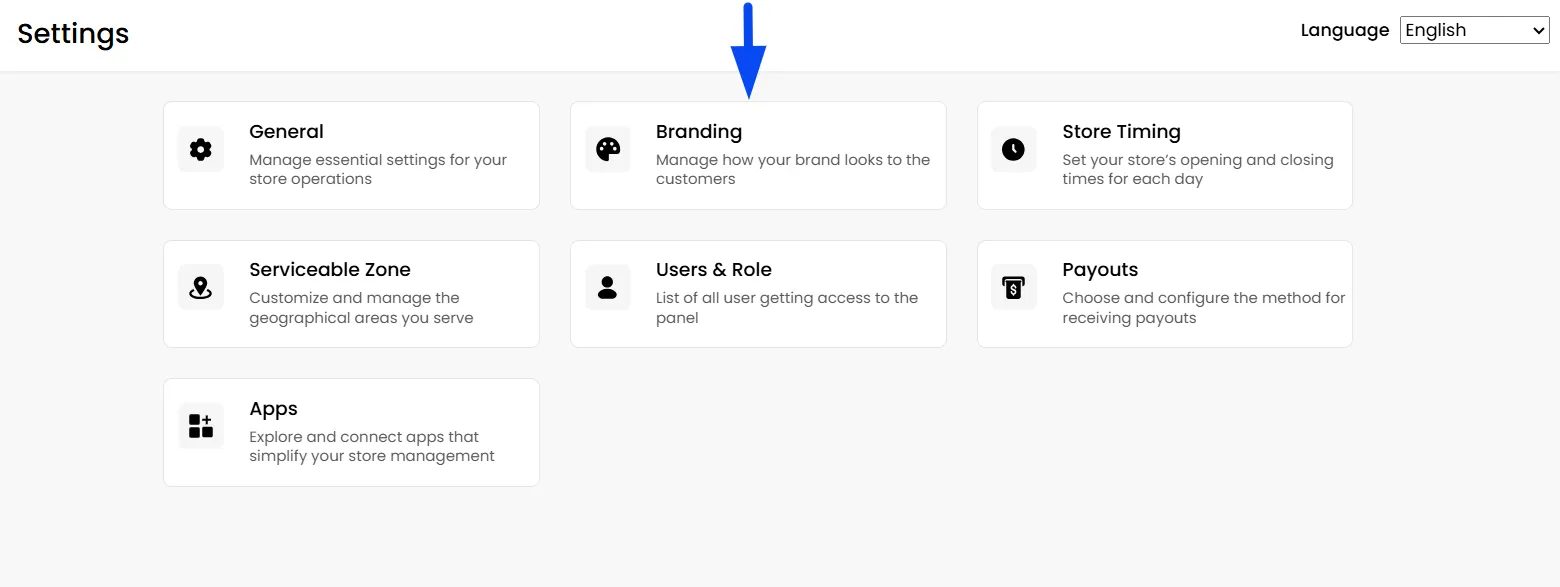
- On the Merchant panel, click on "Settings."

- Then click "Branding."
- First, you can upload your merchant logo for branding
Note: The required resolution is 512 x 512 pixels.


- Now you can upload the cover image.
Note: The required resolution is 1600 x 900 pixels.


- Finally, click Save to finalize your change
Related Articles
Merchant Settings
How To Configure Merchant General Settings? The General Settings page lets you customize your store’s operational rules, such as Order Scheduling and specific Delivery Fees. You can also define Custom Charges to be applied to the customer at checkout ...Store Timings
Navigating to the Store Timings page On the Merchant panel, click on "Settings." Then click "Store Timing" within the settings section. How To Configure Your Store Timings? Enable the business hours setting to configure your opening and closing ...